

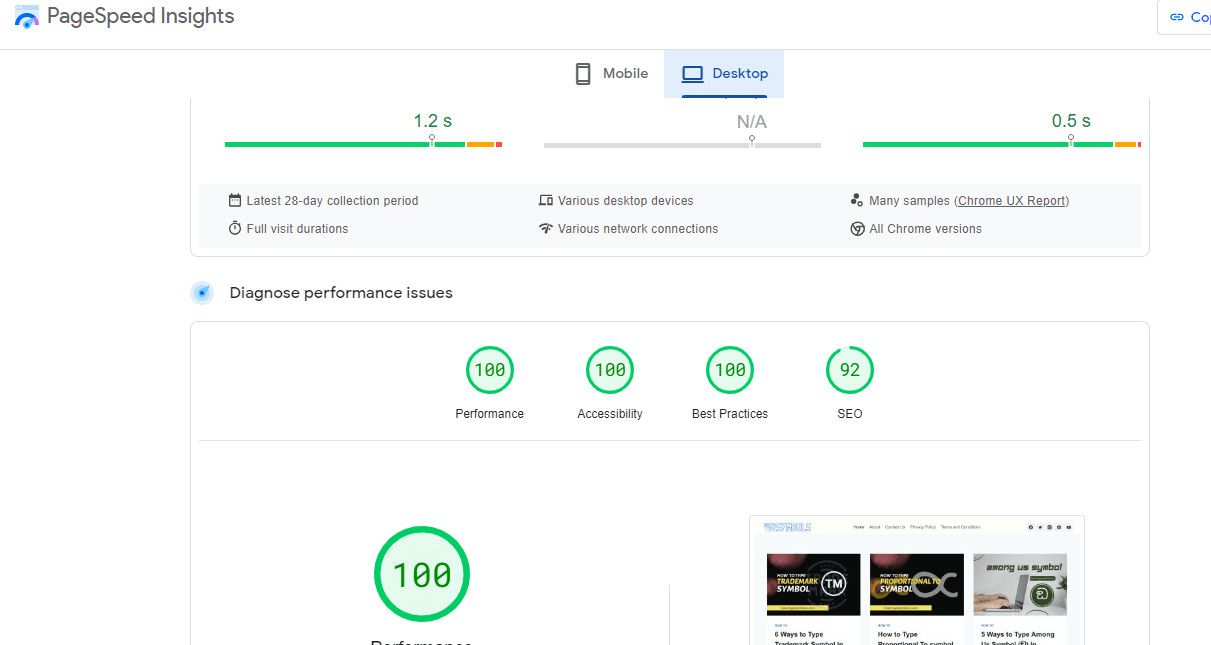
Here is a statistic that you’ve probably heard a lot,
53% of visitors abandon websites that take more than 3 seconds to load
If your WordPress site is slow, you’re haemorrhaging traffic, rankings and revenue every single day. Learning how to speed up your WordPress site isn’t optional.
But here’s the thing:
WordPress isn’t inherently slow; instead, it’s users with bloated plugins, unoptimized images, cheap hosting, and a dozen other issues that bog down their site without even knowing it.
Fortunately, you don’t need to be a developer or know one to fix these issues.
In this guide, I’ll break down 10 research-proven techniques on how to speed up a WordPress site, actionable steps you can implement one by one to cut your loading speed, recover your rankings, and give your visitors the fast, seamless experience that keeps them coming back.
Step 1: How to Speed Up Your WordPress Site by Choosing the Right Hosting Company
The foundational layer of WordPress performance is your hosting environment. No amount of caching techniques, CSS minification, and database cleanup will improve your site’s performance if your hosting provider uses cheap servers with high latency and slow database read/write speeds.
Before you buy a hosting server, you need to look for these things:
- Does the hosting provider use NVMe storage? NVMe storage offers significantly higher input/output operations per second (IOPS), which is crucial for the database-intensive nature of WordPress websites.
- Do they utilise a LiteSpeed web server (LSWS)? LiteSpeed is considered an industry standard for WordPress hosting due to its LSCache engine, which efficiently manages high traffic while consuming less memory compared to Apache.
- What server uptime guarantee do they offer? Aim for a minimum uptime guarantee of 99.95% (approximately 21.6 minutes of downtime per month). Enterprise-grade sites should seek 99.99% or higher to ensure minimal disruption for visitors.
- Are they using the latest CPU architecture? The CPU (processor) directly impacts the speed at which PHP instructions are executed. As of 2026, high-performance hosting typically utilises 5th Gen AMD EPYC (9005 series) and Intel Xeon 6 processors.
Ensure the hosting providers meet these requirements before buying a hosting plan.
Step 2: PHP Version: A Critical Factor in How to Speed Up Your WordPress Site
PHP is a programming language WordPress runs on. This means WordPress’s performance is intrinsically linked to the efficiency of the PHP interpreter you are using.
The release of PHP 8.x introduced fundamental architectural changes, most notably the Just-In-Time (JIT) compiler, which, in simple terms, means it’s faster than traditional compilers out there.
This means staying up to date with your PHP version is very critical, and if your server is running on a version older than 8.x, you need to upgrade it immediately. This process will be different depending on where you host WordPress, i.e., cPanel, Plesk, or a custom dashboard.
Step 3: Page Caching: The Non-Negotiable Technique for How to Speed Up Your WordPress Site
Caching is an optimization technique that involves storing your webpage temporarily, so when a user requests the same page again, the server sends back the cached version instead of reconstructing a new one from scratch.
The most efficient implementations occur at the server level, such as Nginx FastCGI caching or LiteSpeed’s LSCache, which serve content directly from disk or memory, preventing requests from reaching the WordPress core and significantly improving speed.
Therefore, selecting a high-quality hosting provider is crucial for maximising your WordPress site’s page speed.
There are also plugins like :
- WP Rocket – WP Rocket is the most recommended caching plugin and costs $59/year. It automatically applies 80% of performance best practices upon activation, including page caching, browser caching, and GZIP compression.
- LiteSpeed Cache – Best for LiteSpeed servers and completely free to use, it implements server-level caching that bypasses the PHP layer entirely for faster response times. It also includes built-in image optimization and works best on LiteSpeed or OpenLiteSpeed hosting.
- W3 Total Cache – This plugin is best for more technical users and is available as a freemium (Pro starts at $99/year). It offers extensive support for various caching methods like Redis, Memcached, and fragment caching.
- WP Super Cache– This is by far the most user-friendly caching plugin and is completely free. It is ideal for content-heavy sites where database bloat is a recurring issue.
There may be hundreds more, but I recommend choosing from these four.
Step 4: Optimised Image Formats: A Visual Guide to How to Speed Up Your WordPress Site
Images and video content frequently comprise the largest portion of a page’s total weight. Transitioning from traditional formats like JPEG and PNG to next-generation formats is a non-negotiable step to speeding up your website loading speed.
- AVIF – This image format is based on the AV1 video codec, which just became the gold standard for compression this year (2026). It typically achieves file sizes 50% smaller than JPEG and 20% smaller than WebP for equivalent visual fidelity, but lacks compatibility with older browsers.
- WebP – This format is considered the standard version for web-based images due to its compatibility with older browsers.
There are various plugins available to help you optimise your images into these formats, such as:
- Imagify: If you use the WP Rocket caching plugin, I’d recommend Imagify for image optimization. It provides three compression levels (Normal, Aggressive, Ultra) and automatically converts images to WebP/AVIF formats.
- ShortPixel Image Optimiser: (Personal favourite) image compression plugin. It also offers three compression levels (Lossy, Glossy, Lossless) and converts images to both WebP and AVIF formats.
- Optimole: This plugin optimises images in real-time. Simply set it once and let it run. It serves images through a global CDN, tailoring them to the visitor’s device and browser, which also saves you disk space.
Beyond image formats, “lazy loading” is another technique that can reduce webpage loading times, WordPress has offered native lazy loading of images offers native Lazy Loading of images since version 5.5 for images that have a defined width and height set.
Step 5: Content Delivery Networks (CDN): How to Speed Up Your WordPress Site Globally
Your server lives in one physical location. Every visitor far away waits for data to cross oceans, through network hubs, over countless routers. That distance translates directly into milliseconds.
A CDN fixes this by distributing your site’s static assets, images, CSS, JavaScript, and cached HTML across servers worldwide. Someone in Tokyo visiting your Dallas-hosted site pulls from Tokyo, not Dallas. Thousands of miles become a few city blocks.
The top options for WordPress:
- Cloudflare is the obvious starting point – 300+ cities, free DDoS protection, and a generous free plan. Paid plans add image optimization and advanced firewall rules.
- BunnyCDN is the value sweet spot: pay-as-you-go pricing and geolocation routing that serves from the closest server, not just the nearest major hub.
- QUIC.cloud is the secret weapon for LiteSpeed hosting; it integrates directly with LiteSpeed Cache and can cache dynamically generated HTML, not just static assets. Sucuri is a security firewall first, CDN second, worth considering if you handle sensitive data or have been hacked before.
The one mistake everyone makes:
They enable a CDN and stop testing. A misconfigured CDN can actually slow your site down, serving outdated files, skipping compression, or failing silently.
After setup, run GTmetrix or Pingdom and check two things: are your assets being served from your CDN domain, not your main domain? Has Time to First Byte dropped for international visitors?
When implemented correctly, a CDN turns a local site into a global one without moving your server an inch.
Step 6: Lightweight Theme: A Foundational Choice in How to Speed Up Your WordPress
Here’s a hard truth theme developers don’t want you to know: most premium WordPress themes are rolling tool sheds disguised as houses. They bundle page builders, sliders, font libraries, and dozens of other features into a single package, and you load all of it even if you use 10%.
This bloat isn’t accidental. It’s feature creep disguised as value.
Your theme should do one thing well: present your content beautifully. Contact forms, SEO, e-commerce, that’s what plugins are for.
What makes a theme lightweight?
Clean, semantic HTML5 and modern CSS. Minimal JavaScript in the critical rendering path. No Google Fonts or icon libraries are loaded by default. And compatibility with caching plugins rather than conflict with them.
The current gold standards:
- Astra loads in under 50KB and integrates with page builders without forcing you to load their front-end bloat.
- Kadence uses block-based customisation through the native WordPress editor, no third-party builders needed, and typography and colour controls happen entirely through CSS.
- Blocksy is built for the block editor era, loads zero unnecessary scripts on the front end, and handles dark mode natively without performance penalties.
The page builder trap:
Most site owners choose a lightweight theme, then install Elementor or Divi and build pages loaded with animations and parallax effects. That undoes every performance gain from the theme. Page builders load their own CSS, their own JavaScript, and often inline thousands of lines of unused styles. If you need one, Bricks Builder and Oxygen Builder produce notably cleaner front-end code but limit animations regardless.
The litmus test:
Before committing to any theme, run its demo through GTmetrix or WebPageTest. A truly lightweight theme loads its demo under 500KB with fewer than 15 HTTP requests. If the demo is bloated, your customised version will be worse.
Step 7: Database Hygiene: An Overlooked Aspect of How to Speed Up Your WordPress Site
WordPress is a hoarder by design.
Every post revision, spam comment, uninstalled plugin, and contact form submission leaves something behind. Over months and years, this digital clutter accumulates into a bloated database that struggles with even basic queries.
Your database isn’t just storage; it’s the engine behind every page load, search, and login. When it’s clogged with years-old spam and revisions from 2018, everything slows down.
What’s actually slowing you down:
Post revisions are the biggest culprit. WordPress saves a draft every few seconds as you edit, so a single post can generate dozens of revisions that will never be used again.
Spam comments pile up even when Akismet catches them. Expired transients, temporary data plugins store, but sometimes forget to delete, accumulate like digital cobwebs.
Orphaned metadata lingers after you delete posts or users. And if you’ve been running WordPress since the mid-2000s, you may have thousands of pingbacks and trackbacks that nobody has used in a decade.
The cleanup tools that work:
WP-Optimise is the easiest starting point. It removes revisions, spam, trashed items, and expired transients through a clean interface, and the premium version lets you schedule weekly cleanups automatically.
- Advanced Database Cleaner gives you more granular control, so you can see exactly what’s in your database and target specific types of orphaned data. It’s more powerful, but less beginner-friendly.
- WPSweep uses WordPress’s native delete functions instead of direct SQL queries, making it safer for smaller sites where caution matters more than raw speed.
How often?
Monthly is enough for most sites. High-traffic blogs with heavy comment activity benefit from bi-weekly cleanups. Consistency matters more than intensity; a database cleaned monthly outperforms one deep-cleaned once a year after months of neglect.
Step 8: Code Optimization and CSS Minification: Technical How to Speed Up Your WordPress Site
So you’ve optimised images, enabled caching, and chosen a lightweight theme. Your site should fly. But when you run PageSpeed Insights, Google still tells you to “Eliminate render-blocking resources” and “Minify CSS.”
What gives?
Every line of code on your site, every CSS rule, every JavaScript function, every HTML tag has to be downloaded, parsed, and executed by the browser before your visitor sees anything useful. If that code is sloppy, redundant, or poorly organised, your visitors wait while the browser does cleanup work that should have been done at the server.
Minification explained simply:
Minification is the process of removing everything from your code that humans need, but computers don’t. Comments, whitespace, line breaks, and unnecessary characters all get stripped out.
The tools that handle this automatically:
- Autoptimize – This free plugin is the Swiss Army knife of code optimization. It minifies CSS and JavaScript, combines files, and even moves JavaScript to the footer to prevent render-blocking. The settings can feel overwhelming, but the defaults work well for most sites. Enable CSS optimization, JavaScript optimization, and HTML optimization, then test thoroughly.
- WP Rocket – If you’re already using WP Rocket for caching, its file optimization tab handles minification and combination automatically. It also offers “Remove Unused CSS” (in paid versions), which analyzes your site and strips out CSS rules that don’t apply to the current page, a technique that dramatically reduces file sizes.
- Asset CleanUp – This plugin takes a different approach: it lets you disable specific CSS and JavaScript files on pages where they aren’t needed. If your contact page loads a slider script, Asset CleanUp stops it. If your blog archive loads a WooCommerce stylesheet, Asset CleanUp removes it. This “load only what’s necessary” philosophy can cut page weight by 50% or more.
The one rule you cannot break:
After any code optimization, test every page of your site.
Minification can break JavaScript functionality. Combining files can change load order and break dependencies. Removing unused CSS can accidentally strip styles from elements that load dynamically.
After enabling any optimization, click through your site. Check forms. Test menus. Verify that sliders still slide and modals still modal. Performance gains mean nothing if your site looks broken.
When done correctly, code optimization shaves seconds off load times without changing a single pixel of your design. Your visitors never know what you did. They just know your site feels faster than everyone else’s.
and Lastly,
Step 9: Continuous Auditing: The Ongoing Process of How to Speed Up Your WordPress Site
Speed optimization isn’t a project. It’s a process.
You can minify every file, compress every image, and configure every cache and six months from now, your site will be slow again. WordPress changes. Plugins update. Content grows. Performance degrades so gradually that you won’t notice until your traffic drops.
Think of your site like a high-performance car. You wouldn’t skip oil changes and wonder why the engine seized. The difference is that an oil change takes an hour. Site maintenance takes fifteen minutes a month if you’re systematic.
Your monthly audit checklist:
Run performance tests on GTmetrix, PageSpeed Insights, and WebPageTest. Look for trends, not just scores. If Time to First Byte creeps up three months in a row, something’s wrong with your hosting.
Review your plugin inventory. For each plugin, ask: Do I still need this? Is there a faster alternative? When was it last updated? Abandoned plugins are security risks and performance anchors.
Check your PHP version. Hosts sometimes reset your settings during server updates. Dropping from PHP 8.2 to 7.4 costs you 30% of your speed overnight.
Clear accumulated bloat. Delete spam, post revisions, and expired transients. Two minutes of cleanup prevents slow database decay.
Test external dependencies. A failing font CDN or analytics script can cripple your site without touching your server.
Update without breaking things:
Never click “Update All” blindly. Back up first, a real, verified, off-server backup. Then update in stages: plugins, then theme, then core, testing after each. Use a staging environment if your host offers one. And read changelogs before any major version jump.
The Bottom Line on How to Speed Up Your WordPress Site:
After months of maintenance, after every update, audit and optimization, here’s what you’re really measuring:
Do your visitors stay?
Bounce rate. Time on site. Conversion percentage. These business metrics tell you whether your speed improvements actually matter. If your site loads in 0.8 seconds but visitors still leave, your problem isn’t performance; it’s content, design, or user experience.
But when your site loads instantly, when pages render smoothly, when every interaction feels immediate, visitors notice.
And that trust translates directly into the revenue, growth, and stability that brought you to WordPress in the first place.
Speaking of turning trust into revenue, if you’re a blogger or content creator, the next step after building a fast, credible site is monetizing it.
That’s exactly why I built MpesaPaywallPro, a WordPress plugin that lets you put your best content behind a paywall and get paid instantly via Mpesa. Because a fast site that doesn’t make money is just an expensive hobby.”
What did you think of these strategies for speeding up WordPress? Do you have your own tips, experiences, or tools that made a difference? Share your thoughts or additional insights in the comments below
I’d love to hear from you and keep the conversation going!
